
Why We May Ask You To Update Your Password

From time to time, we may ask customers to set a new password for their account.

This does not automatically mean there has been a security breach. It is simply a normal security precaution designed to keep your account protected.

Why Password Updates Are Important

Passwords can become less secure over time.

This may happen because:

  • A password was created many years ago
  • The password is too short or easy to guess
  • The same password has been used on other websites
  • The account has not been accessed for a long time
  • Security standards have improved since the password was first created

Even if nobody has accessed your account without permission, an old or weak password can still create unnecessary risk.

Why Dormant Accounts Matter

An account that has not been used for a long time can still contain important information or access to services.

Dormant accounts can be easier to overlook. For example, an old email address may no longer be monitored, or the password may not have been updated for several years.

Asking for a fresh password helps make sure the account is still protected and controlled by the right person.

Does This Mean My Account Has Been Hacked?

No. A password refresh request does not mean your account has been hacked.

It means we are taking a preventative security step.

Think of it like replacing an old lock. You do not need to wait for a problem before improving the protection.

What Should I Do?

If you receive a genuine password update request from us, please follow the instructions and choose a strong new password.

A good password should be:

  • Unique to this account
  • Long enough to be hard to guess
  • Different from passwords used on other websites
  • Stored safely in a password manager if possible

Avoid using names, birthdays, company names, common words, or passwords you have used elsewhere.

Be Careful With Password Emails

We will never ask you to send your password to us by email.

If you are unsure whether an email is genuine, do not reply with your password and do not send sensitive information.

Instead, visit our website directly by typing the address into your browser, or contact our support team for help.

Why We Do This

Our aim is to reduce avoidable security risks before they become a problem.

Regular password refreshes help protect:

  • Your account
  • Your services
  • Your billing and contact information
  • Any domains, hosting, or other products linked to your account

It is a simple step, but it can make a meaningful difference.

In Summary

If we ask you to update your password, it is usually a routine security precaution.

Old passwords, weak passwords, reused passwords, and long-unused accounts can all create extra risk. Setting a new, strong password helps keep your account safer and gives you confidence that your details remain protected.
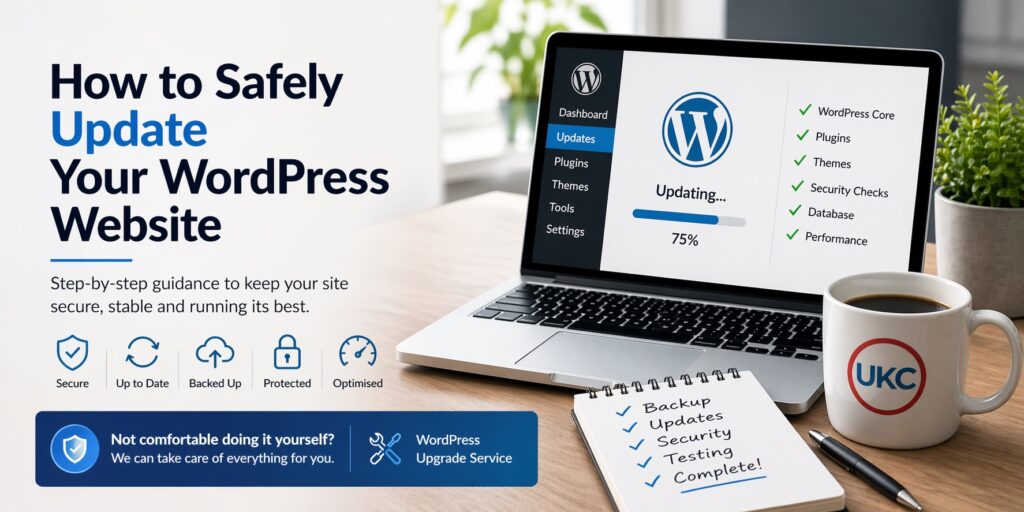
How to Safely Update Your WordPress Website (Step-by-Step)

If your WordPress site is out of date, it’s important to update it to keep it secure and running properly.

Some customers prefer to handle this themselves, so below is a simple guide to what’s involved and the steps you should follow.


⚠️ Before You Start

Updating WordPress is not always risk-free, especially on older sites or those with lots of plugins.

If something goes wrong, your site could break or become inaccessible.

👉 That’s why preparation is essential.


Step 1: Take a Full Backup

Before making any changes:

  • Back up your website files
  • Back up your database

This ensures you can restore your site if anything goes wrong.


Step 2: Update WordPress Core

  • Log in to your WordPress dashboard
  • Apply any available WordPress updates

⚠️ If your site is very old, updates may need to be applied gradually rather than all at once.


Step 3: Update Plugins and Themes

  • Update all plugins
  • Update your active theme
  • Remove any plugins or themes you no longer use

👉 Outdated or unused components are one of the most common causes of issues.


Step 4: Check PHP Version

Your hosting uses PHP, which also needs to be up to date.

  • Check your current PHP version
  • Upgrade to a supported version if needed

⚠️ Older WordPress sites may not be compatible with the latest PHP versions, so proceed carefully.


Step 5: Improve Security

To help protect your site:

  • Install a security plugin (e.g. Wordfence)
  • Disable access to sensitive files where possible
  • Restrict unnecessary features (like XML-RPC if not needed)

Step 6: Clean Up Your Site

  • Remove unused themes and plugins
  • Delete any duplicate or old WordPress installations
  • Check for unnecessary files

👉 Keeping your site clean reduces security risks.


Step 7: Test Your Website

After updates:

  • Check your pages load correctly
  • Test forms and key functionality
  • Make sure everything looks as expected

Step 8: Secure Access

  • Use strong passwords
  • Remove unused admin accounts
  • Ensure database access is properly restricted

Step 9: Take a Fresh Backup

Once everything is working:

  • Take a new backup of your updated site

This gives you a clean restore point.


⚠️ A Final Note

While the steps above are straightforward in principle, older or more complex websites can run into:

  • compatibility issues
  • plugin conflicts
  • layout problems after updates

This is why updates are often handled carefully and tested throughout the process.


Prefer Us to Handle It?

If you’d rather not risk breaking your site, we’re happy to take care of everything for you.

Our WordPress Upgrade Service includes:

  • Safe updates to WordPress, plugins, and themes
  • Security hardening
  • Cleanup of unused components
  • Full testing and verification

👉 Simply reply to your ticket or place an order, and we’ll handle it for you.

My Website Has Been Compromised and Disabled – What Happens Next?

Last updated: 21 December 2025

If you are reading this page, it means your website was detected performing malicious or abusive activity and has been temporarily disabled to protect our network and other customers.

We understand this can be stressful. This page explains why this happenswhat your options are, and how we can help you get back online safely.


Why was my site disabled?

Your website was disabled because it showed signs of compromise, such as:

  • malicious outbound connections
  • brute-force or scanning activity
  • malware files detected in the website files
  • reports from our upstream providers or security partners

When this happens, we must act quickly to prevent:

  • further damage to your website
  • blacklisting of server IP addresses
  • disruption to other customers

Disabling access is a temporary containment measure, not a punishment.


What does “disabled” mean?

In most cases:

  • your website will not be publicly accessible
  • email services are not affected
  • your data has not been deleted

The site is simply prevented from loading until the issue is resolved.


Your options to get back online

You have three main options, depending on your situation.


If you would like us to handle everything for you, we offer a WordPress Rescue Service, which includes:

  • full malware and backdoor cleanup
  • removal of malicious files and processes
  • WordPress core, plugin, and theme updates
  • security hardening to reduce future risk
  • verification before re-enabling the site

This is the fastest and safest way to get your site back online.

👉 Ideal if you are not technical or want peace of mind.


Option 2 – Reset and reinstall WordPress

If you prefer to start fresh:

  • we can reset the website document root
  • you reinstall WordPress from scratch
  • you restore content manually or from a clean backup
  • security plugins and updates must be applied before reactivation

👉 Suitable if the site is small or content can be easily recreated.


Option 3 – Clean the site yourself

If you choose to clean the site yourself:

  • all malware and suspicious files must be removed
  • WordPress core, plugins, and themes must be updated
  • basic security measures must be in place
  • the site will be reviewed before re-enabling

Please note: incomplete cleanups often result in re-infection.


What happens after cleanup?

Once cleanup or rebuilding is complete:

  1. you notify our support team
  2. we verify the site is no longer compromised
  3. public access is restored

Preventing this from happening again

After recovery, we strongly recommend:

  • keeping WordPress, plugins, and themes updated
  • using strong passwords and two-factor authentication
  • running a reputable WordPress security plugin
  • removing unused plugins and themes

You can read our full Minimum WordPress Security Requirements article for details.


Need help deciding?

If you are unsure which option is best for you, open a support ticket and we will be happy to advise based on:

  • site size
  • content importance
  • technical experience
  • budget

Final note

Website compromises are unfortunately common and not a reflection on you.

What matters most is resolving the issue properly and preventing a repeat.

We’re here to help you get back online safely.

Minimum WordPress Security Requirements

Last updated: 21 December 2025

To protect our network and our customers, all WordPress websites hosted with UK Cheapest must meet the minimum security requirements outlined below.

Websites that do not meet these requirements are at a significantly higher risk of being hacked and may be temporarily restricted if they pose a security or abuse risk.


Why this is required

WordPress is a popular platform and is frequently targeted by automated attacks.

Most compromises occur due to:

  • outdated WordPress core
  • vulnerable or abandoned plugins
  • weak passwords
  • lack of basic security protection

Once a site is compromised, it can be used to send spam, perform attacks, or host malicious content. These activities can result in service disruption or action by upstream providers.


Minimum security requirements (mandatory)

All WordPress installations must meet all of the following requirements.

1. Keep WordPress fully up to date

  • WordPress core must be kept on the latest stable version
  • All themes and plugins must be kept up to date
  • Any themes or plugins that are not actively used must be deleted, not just disabled

2. Use strong login credentials

  • Strong, unique passwords must be used for all WordPress admin accounts
  • Do not reuse passwords from other websites or services
  • Remove any unused admin or user accounts

3. Install a security plugin

A reputable WordPress security plugin must be installed and active.

Examples include (but are not limited to):

  • Wordfence
  • iThemes Security / Solid Security
  • All In One WP Security

The security plugin should provide basic protection such as login rate limiting and malware scanning.


4. Protect the login page

At least one of the following must be enabled:

  • login rate limiting
  • CAPTCHA
  • two-factor authentication (recommended)

This significantly reduces brute-force and credential-stuffing attacks.


5. XML-RPC protection

  • XML-RPC must be disabled if it is not required, or
  • protected via a security plugin

Unprotected XML-RPC is a common attack vector.


6. File and plugin hygiene

  • No executable files or custom binaries should exist in the website document root
  • Plugins and themes must only be installed from trusted sources
  • Pirated, nulled, or unverified plugins/themes are not permitted

If your site is compromised

If a WordPress site is found to be compromised or generating malicious activity:

  • the site may be temporarily restricted to prevent further abuse
  • cleanup or rebuilding will be required before the site can be re-enabled

UK Cheapest offers a WordPress Rescue Service for customers who would like us to professionally clean and secure their site.


Important note

Meeting these minimum requirements significantly reduces risk, but no website can be guaranteed to be completely immune from attack. Ongoing maintenance and updates are essential for long-term security.


Need help?

If you would like assistance securing your WordPress site, or if you are unsure whether your site meets these requirements, please open a support ticket and our team will be happy to advise.

DKIM Support Now Available in the Client Area DNS Manager

We’re pleased to announce that you can now add DKIM (DomainKeys Identified Mail) records directly through the Client Area DNS Manager for all parked domains.

What is DKIM?

DKIM is an industry-standard email authentication system that helps protect your domain name from being used for spam or phishing. It works by digitally signing outgoing messages so that receiving mail servers can verify they were genuinely sent from your authorised mail source.

When DKIM is active:

  • Your emails are less likely to be marked as spam
  • Recipients can trust that messages really came from you
  • Your domain reputation and deliverability improve

How it Works

Every DKIM setup uses two keys:

  • private key, stored safely on the mail server that sends your messages
  • public key, published in your domain’s DNS as a TXT record

When an email is sent, your mail server signs it with the private key. The receiving system checks that signature using the public key in your DNS.

Adding DKIM in the Client Area

If your mail service (for example Google Workspace, Microsoft 365, or your own server) provides you with a DKIM record, you can now publish it in just a few clicks.

  1. Log in to your Client Area at https://www.uk-cheapest.co.uk
  2. Go to Domains → Manage Domain → DNS Manager
  3. Add a new TXT record
    • Host/Name: the DKIM selector (for example, default._domainkey)
    • Value: the full DKIM record starting with v=DKIM1; k=rsa; p=…
  4. Save changes and allow a few minutes for DNS to update

Once published, your mail provider’s DKIM checks should confirm that your domain is correctly authenticated.

Frequently Asked Questions

1. Do I need to set up DKIM for my domain?

If you send email using your domain name, yes – DKIM is strongly recommended. It helps protect your domain’s reputation and improves email delivery by verifying that messages weren’t altered in transit.


2. Where do I get my DKIM record?

Your DKIM record is generated by your email provider or mail server. For example, Google Workspace, Microsoft 365, or your web hosting control panel will each provide a v=DKIM1; p= record that you can copy and paste into your DNS Manager.


3. How long does it take for DKIM to start working?

Once you add your DKIM record, it can take anywhere from a few minutes to a few hours for DNS propagation. After that, emails sent from your domain should show as “signed” when checked by online DKIM testers.


4. Can I use DKIM on a parked domain?

Yes. Even if your domain is parked, you can add DKIM records in advance or if you’re routing mail through another system. This is especially useful for protecting your brand from spoofed messages.


5. What if my DKIM record doesn’t validate?

Check that your record is added as a single TXT entry, with no extra spaces, quotes, or missing characters. If you’re unsure, open a support ticket – our team will review your DNS record and help you get it verified.

Need Help?

If you’re unsure which DKIM record to use or your provider’s verification fails, open a support ticket and our team will review your DNS settings for you.


Tip: It’s normal to paste a DKIM record generated on another mail system into your DNS – just make sure it’s copied exactly as provided.

For further guidance, visit your email provider’s DKIM documentation or contact us anytime through the Client Area Support Centre.