
 Re: Setup email on iPhone, iPad, iPod or IMAP PC/Mac client
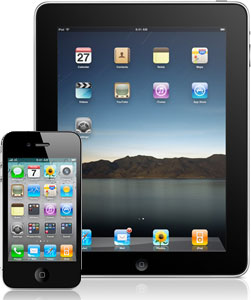
So you have logged in to Plesk and created your mailbox. Now, apart from being able to use RoundCube Webmail straight away, you might want to connect your cool iDevices too. Here’s how to do it…
Try the following for sending/receiving IMAP on your iPhone/iPad or Mac/PC devices:
Incoming Mail Server
Hostname: mail.yourdomain.co.uk
User Name: mailboxname@yourdomain.co.uk
Password: (your password)
A certificate warning may be displayed, please click on Details -> Trust to continue. This will allow you to use your shared hosting server SSL certificate to connect securely to your mail account.
Advanced Incoming Settings
Use SSL: ON
Authentication: Password
IMAP Prefix: INBOX
Server Port: 993
S/MIME: OFF
Outgoing Mail Server (SMTP)
Hostname: mail.yourdomain.co.uk
User Name: mailboxname@yourdomain.co.uk
Password: (your password)
Use SSL: ON
Authentication: Password
Server Port: 587
Obviously replace mailboxname@yourdomain.co.uk with your own actual mail box name and yourdomain.co.uk with your actual domain name. Now you should be able to send and receive without any problems.