
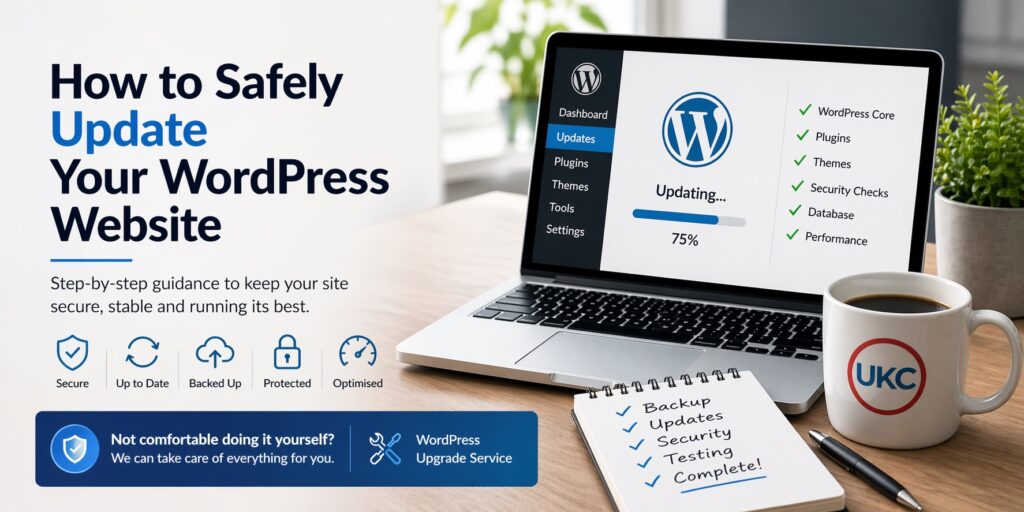
If your WordPress site is out of date, it’s important to update it to keep it secure and running properly.
Some customers prefer to handle this themselves, so below is a simple guide to what’s involved and the steps you should follow.
⚠️ Before You Start
Updating WordPress is not always risk-free, especially on older sites or those with lots of plugins.
If something goes wrong, your site could break or become inaccessible.
👉 That’s why preparation is essential.
Step 1: Take a Full Backup
Before making any changes:
- Back up your website files
- Back up your database
This ensures you can restore your site if anything goes wrong.
Step 2: Update WordPress Core
- Log in to your WordPress dashboard
- Apply any available WordPress updates
⚠️ If your site is very old, updates may need to be applied gradually rather than all at once.
Step 3: Update Plugins and Themes
- Update all plugins
- Update your active theme
- Remove any plugins or themes you no longer use
👉 Outdated or unused components are one of the most common causes of issues.
Step 4: Check PHP Version
Your hosting uses PHP, which also needs to be up to date.
- Check your current PHP version
- Upgrade to a supported version if needed
⚠️ Older WordPress sites may not be compatible with the latest PHP versions, so proceed carefully.
Step 5: Improve Security
To help protect your site:
- Install a security plugin (e.g. Wordfence)
- Disable access to sensitive files where possible
- Restrict unnecessary features (like XML-RPC if not needed)
Step 6: Clean Up Your Site
- Remove unused themes and plugins
- Delete any duplicate or old WordPress installations
- Check for unnecessary files
👉 Keeping your site clean reduces security risks.
Step 7: Test Your Website
After updates:
- Check your pages load correctly
- Test forms and key functionality
- Make sure everything looks as expected
Step 8: Secure Access
- Use strong passwords
- Remove unused admin accounts
- Ensure database access is properly restricted
Step 9: Take a Fresh Backup
Once everything is working:
- Take a new backup of your updated site
This gives you a clean restore point.
⚠️ A Final Note
While the steps above are straightforward in principle, older or more complex websites can run into:
- compatibility issues
- plugin conflicts
- layout problems after updates
This is why updates are often handled carefully and tested throughout the process.
Prefer Us to Handle It?
If you’d rather not risk breaking your site, we’re happy to take care of everything for you.
Our WordPress Upgrade Service includes:
- Safe updates to WordPress, plugins, and themes
- Security hardening
- Cleanup of unused components
- Full testing and verification
👉 Simply reply to your ticket or place an order, and we’ll handle it for you.