Apr 10

Still waiting for DNS propagation after 24 hours? It might help to clear your local DNS cache.

Google Chrome:

Navigate to chrome://net-internals/#dns and press the “Clear host cache” button

Internet Explorer:

1) Launch Internet Explorer.
2) Click “Tools” then “Delete Browsing History.”
3) Uncheck “Preserve Favorites website data,” and ensure that “Cookies,” “History” and “Temporary Internet Files” are checked, and then click “Delete.”

Flush your DNS cache on Windows PCs:

Click “Start,” “Run,” type “cmd” into the run text box and then click “OK.”
Type “ipconfig /flushdns” into the command prompt and press “Enter.”


Apr 05

All domain names parked with UK Cheapest have free access to many resources such as email forwarding, web redirection, DNS management and much more. So there are many reasons why you should park your domain names with us.

Which domains are automatically parked?

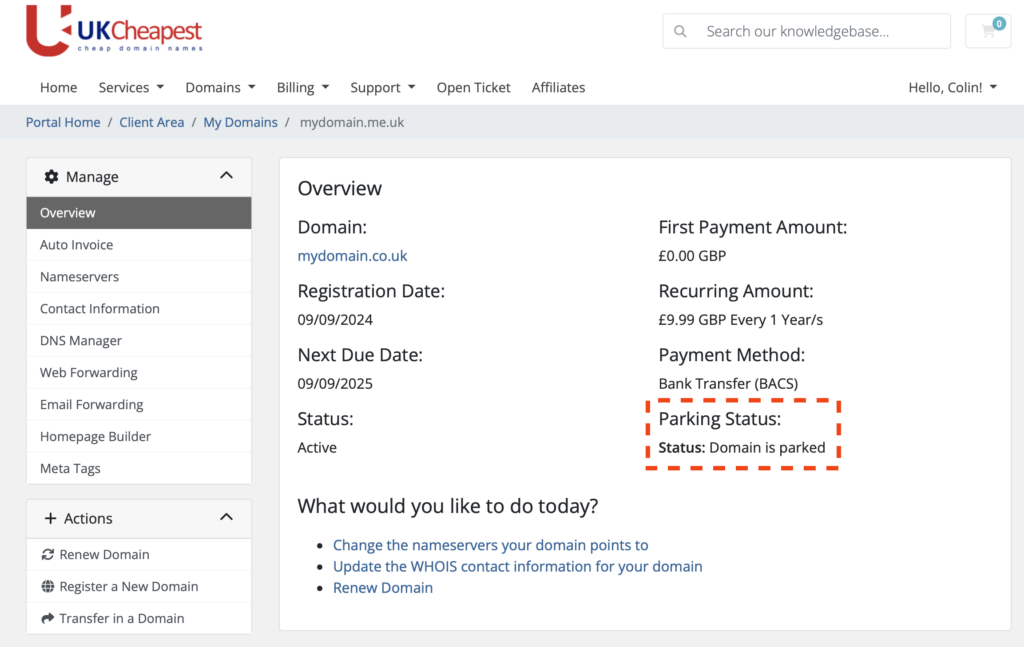
If you register a domain name and have not purchased a web hosting service for that domain name during the checkout process then your domain name is considered parked.

What does this mean? It means that your domain name has not been pointed to any specific hosting server and so it is connected to the domain parking server MICROLITE1.COM thus enabling all the services that we provide with all customer parked domain names.

Troubleshooting non-working parked domains

There are situations where your parked domain name may have stopped working or where your domain name was previously hosted and now you want it parked. In these cases there are a number of steps to the process to ensure that your domain name is parked properly.

Has your domain name expired?

If you domain name has suddenly stopped working and you have not made any changes to the domain name servers or DNS records recently then your domain name may have expired. Check the expiry date in the Public WHOIS or contact Live Support and ask them to check for you. Renew your domain if necessary.

Is your domain name connected to the parking server?

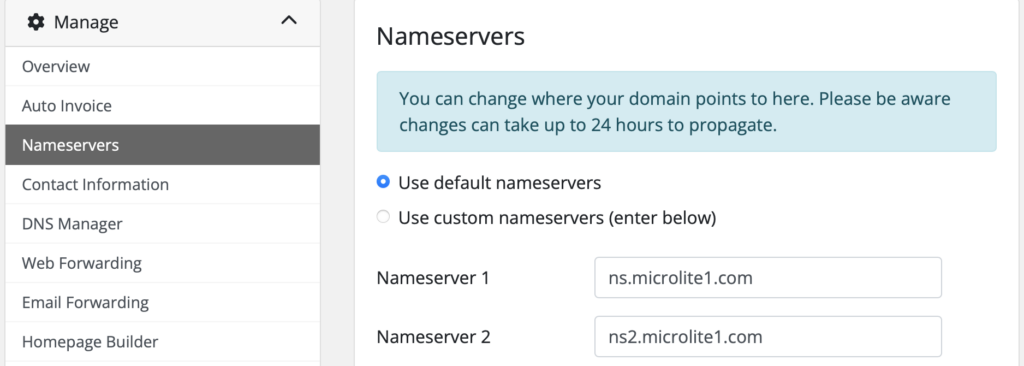
For your domain name to be parked it must be pointing to the parking name server using the correct name servers. Again, view your name server settings by viewing the the Public WHOIS record, you should see the name servers set as follows:

Name servers:
ns.microlite1.com
ns2.microlite1.com

If your name servers are not set to MICROLITE1.COM as above then your domain name is not pointing to the parking server. Login to your Domain Control Panel or ask Live Support to modify your name servers accordingly. Note that any name server change that you make are subject to a 24 hours propagation delay.

Has your domain name been registered for more than 24 hours?

If you domain name is a recent registration then you must allow time for the domain to register and for the new DNS zone to fully propagate the global internet. For .uk domain names you can expect results within 24 hours however for global .tlds such as .com you need to allow up to 72 hours.

Is your DNS zone present and active?

The fact that you have reached this far means that it probably is not active. There are a few reasons that this may be the case. The most common is that you have pointed your domain name to the parking name servers but the DNS zone has not been created for this domain.

To confirm whetjer your DNS Zone is active visit IntoDNS and run a report on your  domain name.

Ask Live Support to create/recreate your domain DNS zone. The only other problem is that your DNS zone is not valid – possibly after a recent change to your records. Again, ask Live Support to reset your DNS zone as new and re-apply your DNS record modifications carefully. 24 hour Propagation delay rules apply.

DNS can be tricky – let us help you

Remember you can ask Live Support to apply your DNS changes, simply copy+paste the instructions you received from your new host and our support teams will assist with the modifications.

Mar 21

Re: Preparing for a Plesk server migration, Bulk change TTL on Plesk

Occasionally you need to move all your clients to a new server. The hardware becomes aged (or slow) but the thought of moving all those clients (hundreds) and the DNS propagation time delay, not something that makes you feel great.

However, you can minimise the DNS propagation times by changing the TTL (Time To Live) on the Plesk domain DNS records. Usually the refresh rate is between daily and weekly. In preparation for a server migration, around a week before, change all domains to update ‘hourly’. You can do this in the panel for each domain name, or you can use this nifty shortcut.

First, change all the TTL’s to 3600 seconds (1 hour)

# mysql -uadmin -p`cat /etc/psa/.psa.shadow` psa
 UPDATE psa.dns_zone SET ttl = '3600', ttl_unit = '60' WHERE id >1;

Now you need to dump the new SOA records to zone files for bind to us:

# mysql -Ns -uadmin -p`cat /etc/psa/.psa.shadow` -D psa -e 'select name from domains' | awk '{print "/usr/local/psa/admin/sbin/dnsmng update " $1 }' | sh

You can test with:

# dig yourdomnain.co.uk SOA

When you have completed the migration and everything is fine, you can change the records back to the default which was 86400.

Jan 04

Before connecting your domain to your Google Apps Email account you will need to determine if your domain name is parked or hosted. If your domain name is parked you will need to make the changes in your Domain Control panel - if your nameservers are NOT set to ns.microlite1.com and ns2.microlite1.com and you have hosting with us you will need to make the changes inside your Plesk control panel. If you have lost your Domain / Plesk control panel login details please go to Forgotten password to retrieve all of your login details by email.

To make DNS changes inside your Domain control panel select the domain and go to DNS Manager, please be sure to delete any existing MX records before adding the new ones. When adding the Google MX records please set the hostname for each MX record to @

To make DNS changes inside your Plesk control panel, select the domain and go to DNS Settings, please ensure that you delete any existing MX records before adding the Google MX records. When adding the records please leave the ‘mail domain’ field blank.

You are now ready to add the following MX records:

ASPMX.L.GOOGLE.COM. 1

ALT1.ASPMX.L.GOOGLE.COM. 5

ALT2.ASPMX.L.GOOGLE.COM. 5

ASPMX2.GOOGLEMAIL.COM. 10

ASPMX3.GOOGLEMAIL.COM. 10

The records are listed in priority order (smallest priority value 1 = highest priority), if you cannot add the priority values listed then you will need to add the records in the listed order.

If you experience any problems please submit a ticket to our Help Desk.

Nov 16

A “SRV” or Service Locator record is a general record that can be used in a generic fashion rather than creating protocol-specific records such as MX.

Nov 16

A “NS” record or Name Server record identifies an authoritative DNS server for a specific zone.

Nov 16

“MX” (Mail Exchange) records are used to specify what server on the Internet is running e-mail software that is configured to handle e-mail for your domain. If you want your ISP to handle routing the e-mail for your domain to you, you need to specify the domain name or IP address of your ISP’s mail server.

In addition, you can specify the rank of each mail server when you have more than one. Make sure your ISP knows that you’re using their servers to route your domain’s email, or all your e-mail will “return to sender”!

Nov 16

“CNAME” records, short for “Canonical Name”, create an alias from a domain name to another. You could create an alias from “yahoo.mydomain.com” to “www.yahoo.com”, and every reference to “yahoo.mydomain.com” would go to the other location, regardless how yahoo changed their IP addresses!

Be careful, however; CNAMEs won’t work everywhere. If you create an MX record, and the name used for the mail server was defined using a CNAME, you might lose e-mail.

Nov 16

Whereas an “A” record is used for IPv4 addresses, an “AAAA” record ties a domain name to an IPv6 address in the same manner.

Nov 16

An “A” record, also called an “address” record, ties a domain name to an IP address. If there is a server on the Internet that is configured to handle traffic for this domain, you can enter the name of the domain (like “www.uk-cheapest.co.uk”) and the IP address of the server (like “84.67.12.9″), and almost immediately, anyone surfing to that domain connects to the correct server.

Nov 16

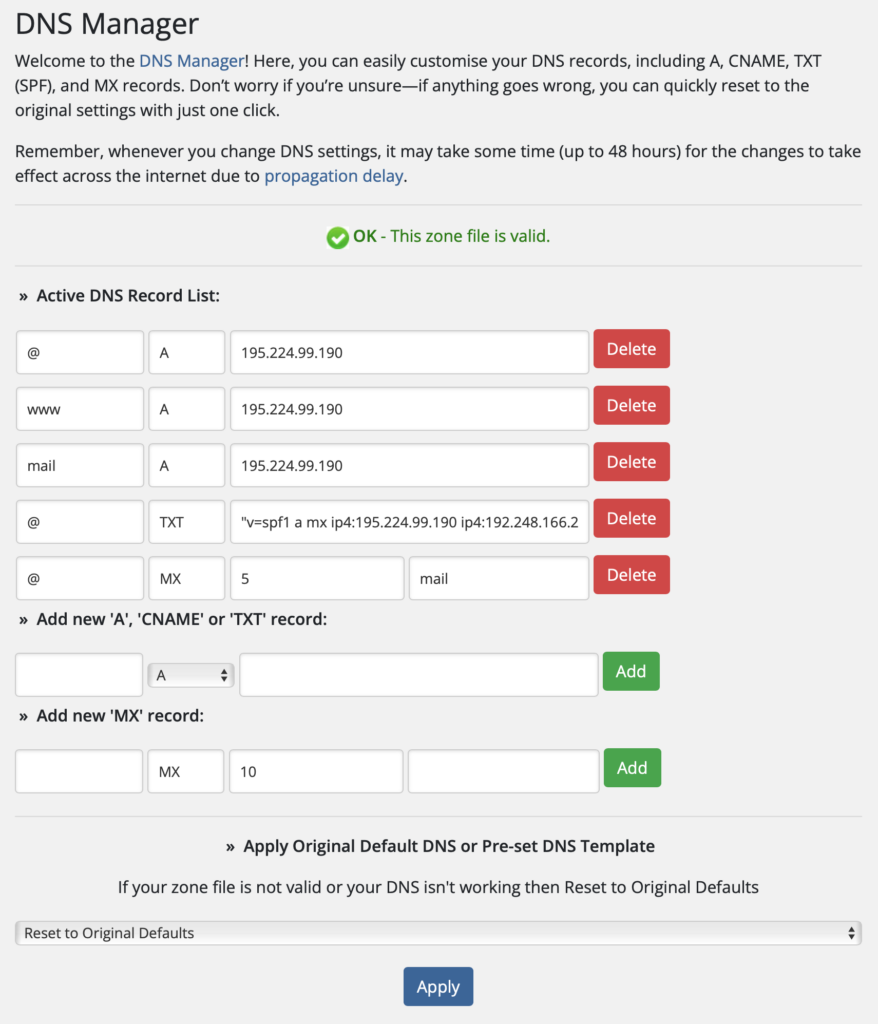
When you register domain names with UK-Cheapest.co.uk, we give you full control over the management of your domain DNS records.

With our advanced web based DNS Manager, you can configure your domain names to function with any hosting provider or server of your choice.

We provide the DNS Manager web interface at no additional cost with every domain name. There are no future or annual costs for this service whatsoever. Period.

Modify your domain DNS records to associate your domain with your blog or externally hosted website. Your host will provide you with comprehensive details showing how to set your domain DNS to connect to their servers.

DNS Manager Interface - in action!Which DNS records can be changed?

You can freely add or delete all A, MX, TXT (SPF) and CNAME records for your domain. The records are added in realtime, there is no delay to your record changes being submitted to the server.

All DNS changes are subject to a propagation delay – this is the time it takes for the new records to be recognised by the global internet name servers.

What is the cost for this DNS service?

The DNS Manager feature is provided at no additional cost with all domain names. This is a totally all inclusive DNS service. Unlimited changes, unlimited records, absolutely no costs.

For more assistance visit the Domain Help Sheet. If you have problems setting up your domain DNS records simply review our Online Help Centre resources or contact ourHelpdesk.

Nov 16

To make use of the domain parking features your domain name needs to have the nameservers set to point to the parking server.

The domain nameservers or the parking server are:

  • ns.microlite1.com
  • ns2.microlite1.com

Once parked, your domain can be used with all parking services such as:

  • unlimited email forwarding
  • web forwarding using 301 and 302 redirects
  • framed web forwarding
  • homepage builder

See: How to change your domain nameservers for further instructions.

Nov 16

So you’re wondering why you may have to wait up to 72 hours for your name server and DNS record changes to take effect…

The reason is that the nameserver changes that you make are propagated (propagate simply means update in domain name speak) to the DNS servers all over the world, the news of your name server change takes time to reach every global DNS server – hence the delay. (See DNS Propagation)

Not all domains propagate at the same rate, you will find…

  • .uk domains require up to 24 hours
  • .com, .org, .biz, .info require 24 to 72 hours
The DNS and nameserver propagation times are entirely external to all hosts, this is simply the nature of the internet. It takes time for servers and routers to register the new information. So please be patient!
Nov 16

Changing domain nameservers is a common task and something you will need to do at some point during the life of your domain name. For this reason, we have made it as easy as possible!

Reasons why you may need to change your domain nameservers:

  • Your domain was parked and you want to host it
  • Your domain was hosted but now you want it parked
  • Your domain was transferred in from another provider and you want to use our parking services

First, you need to have your Domain Control Panel login details, this is absolutely necessary in order to navigate to the Nameserver Change function.

If you do not have your Domain Control Panel login details, to to the Forgotten Password page and request a copy of your details and a copy will be sent to the email address used when you registered your domain name. If this email address is out of date or no longer used, you will have to log a ticket with the Helpdesk.

Right, for those of you who have your Domain Control Panel login details, the rest of the process is simple.

  • Login to the Domain Control Panel (DCP)
  • Click ‘Change Nameservers’
  • Enter your new nameservers
  • Press submit to action your request

Your nameservers will be changed immediately however due to DNS propagation times it will take up to 72 hours to fully take effect.

Nov 16
When you update your domain nameservers it will take up to 72 hours for these nameservers to be recognised across the global internet.
If your domain name still does not work after this time, then you should check that your web host has given you the correct nameservers for your domain name, and that they have set up your domain on their servers.